What are Template Folders?
Template Folders bring a familiar organizational model to DocuGenerate, allowing you to group related templates together in a hierarchical structure. Whether you’re managing a handful of templates or hundreds, folders provide a clean, intuitive way to find what you need and keep your template library organized as it grows.
Until now, all templates in your DocuGenerate account were displayed in a single flat list, sorted by creation date. With this new feature, we’re introducing a folder system that follows the conventions you already know from file managers and email clients, with arbitrary nesting depth, intuitive reorganization, and full support across both the web app and the API.
Why Folder Organization Matters
For organizations that rely on a growing library of templates, the absence of organizational structure can become a real productivity drag over time. As your template library grows from a few dozen to hundreds of templates, locating the right one becomes harder, onboarding new team members slows down, and templates drift apart from any logical structure that once existed in someone’s head.
1. Faster Template Discovery
With folders, you no longer need to scroll through a long list of templates or rely on partial name matching to find the right one. A well-organized folder hierarchy mirrors how your team actually thinks about templates, whether by department, by client, by document type, or by project phase.
2. Clearer Mental Model for Teams
When templates are organized into folders, the structure itself communicates intent. A new team member looking at your template library can quickly grasp how documents are categorized in your organization, reducing the need for explanations or onboarding documentation.
3. Filterable Views
Folders aren’t just visual containers. Selecting a folder filters the templates view to show only the templates inside it, giving you a focused workspace when you’re working within a specific category. The current folder is reflected in the page URL, so you can bookmark or share a filtered view.
How Template Folders Work in the Web App
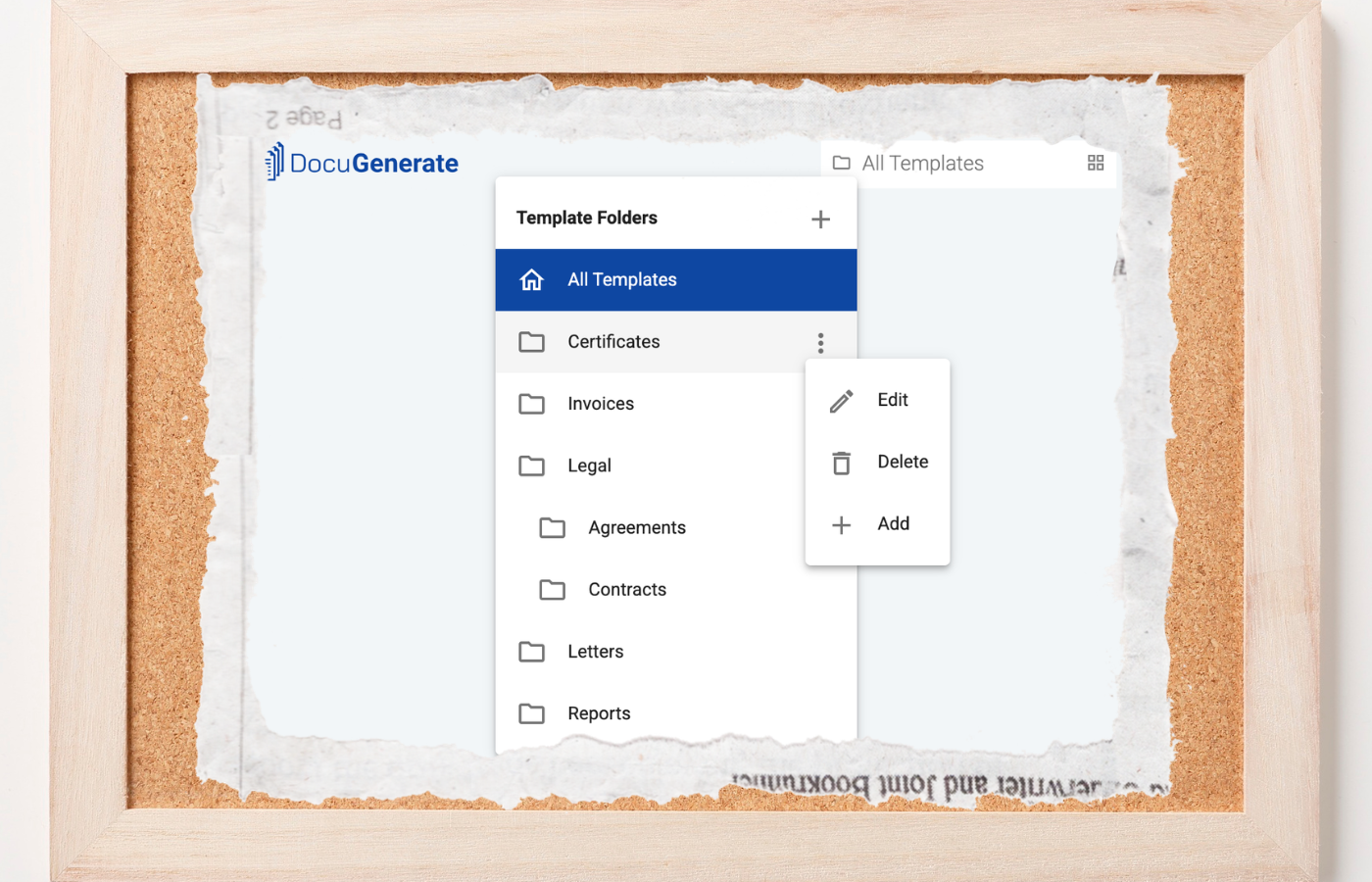
Folders are accessible throughout the app via the folder icon in the navbar. Clicking it opens the folder menu, which displays your folder tree and lets you create, edit, or delete folders directly. On mobile devices, the folder menu is available from the main user menu.
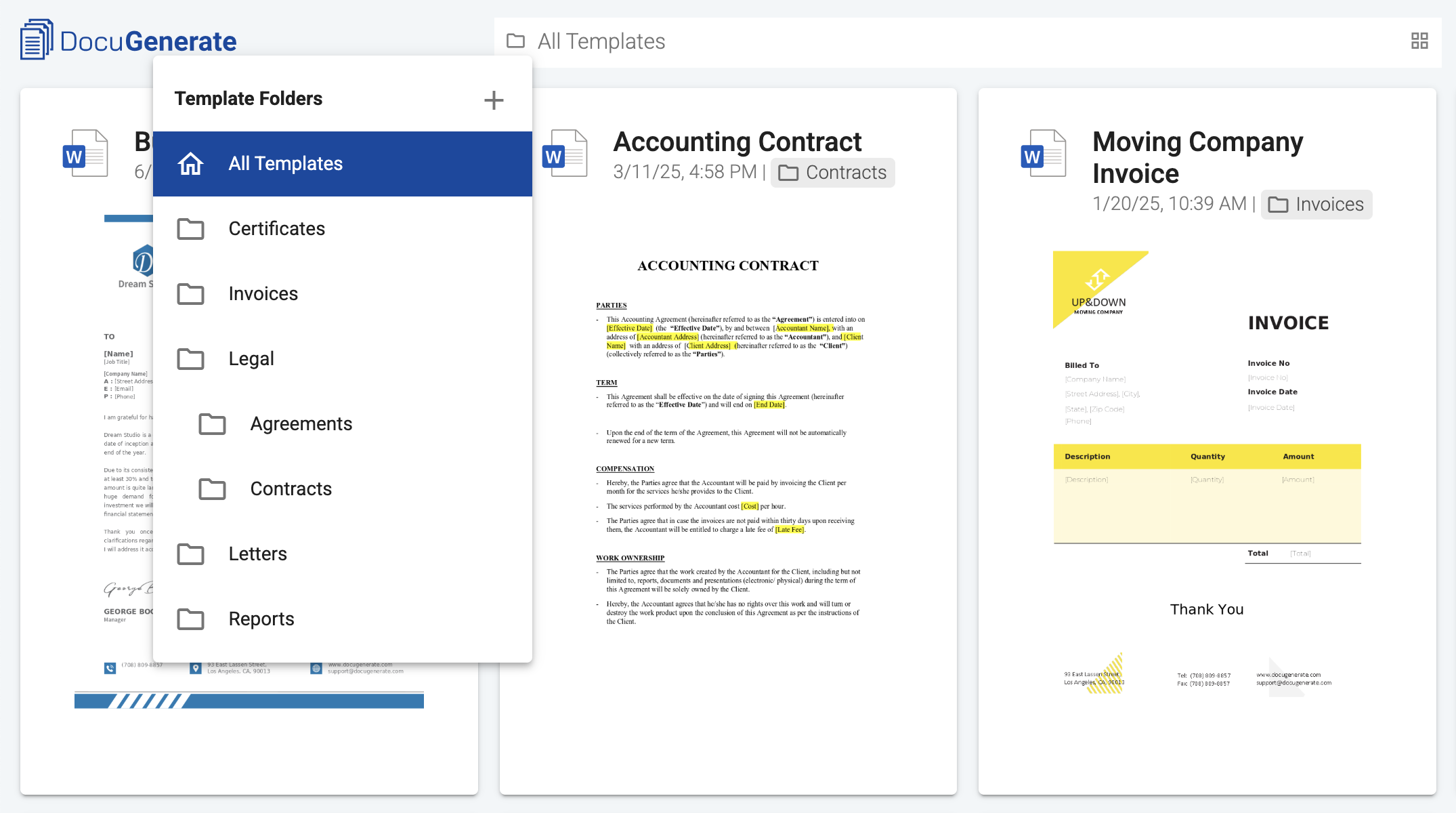
Creating a Folder
To create a new folder, click the New Folder icon next to the Template Folders header in the folder menu. A dialog opens where you can enter the folder name and optionally select a parent folder if you want to create the folder inside an existing one.
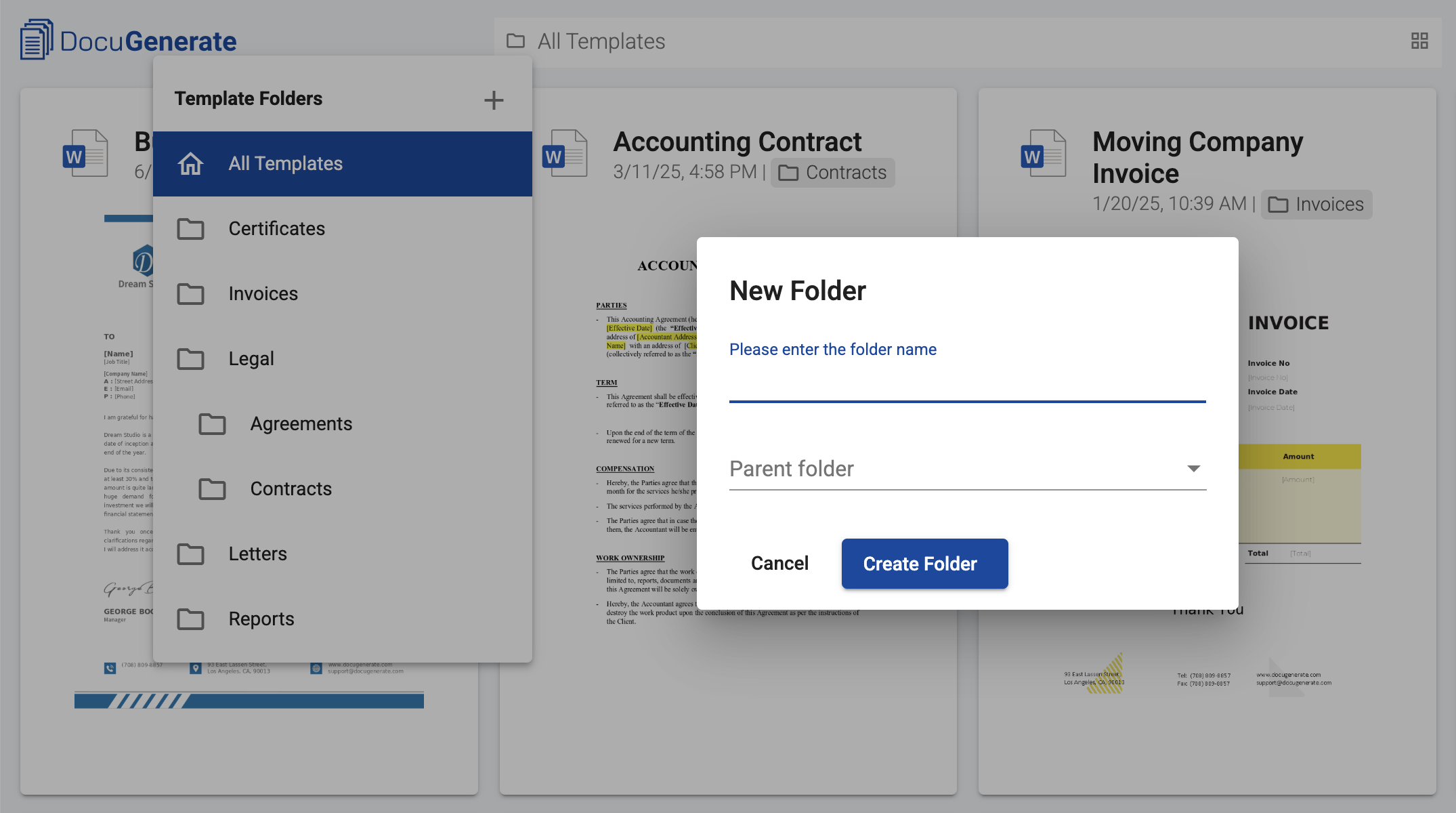
To create a sub-folder directly from an existing folder, you can also use the Add action in the folder’s context menu, which pre-fills the parent selection for you. Folder names support letters, numbers, and spaces. Each folder gets a unique URL derived from its name, as described in the filtering section below.
Assigning Templates to Folders
You can assign a template to a folder either when creating a new template or by editing an existing template’s settings. The folder dropdown in the template settings shows the full tree of available folders, with indentation reflecting the parent-child relationships.
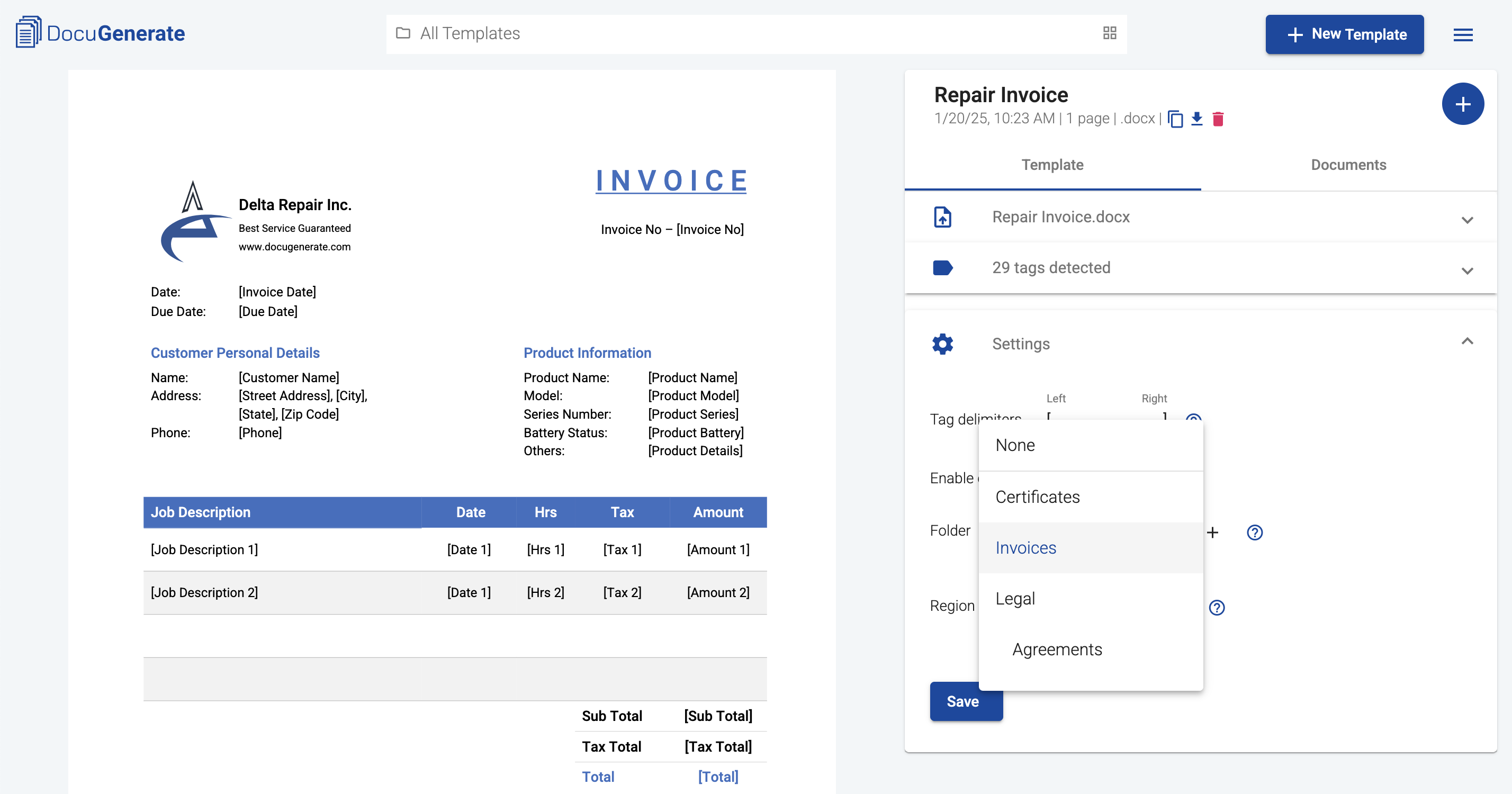
Each template belongs to a single folder at a time. To move a template to a different folder, you change the folder selection in the template settings and save. To remove a template from any folder, you select None in the folder dropdown.
Filtering Templates by Folder
Selecting a folder in the folder menu filters the templates view to show only the templates within that folder. The page URL updates to reflect the current filter. This means you can bookmark a folder view, share the URL with a teammate, or open multiple browser tabs each focused on a different folder.
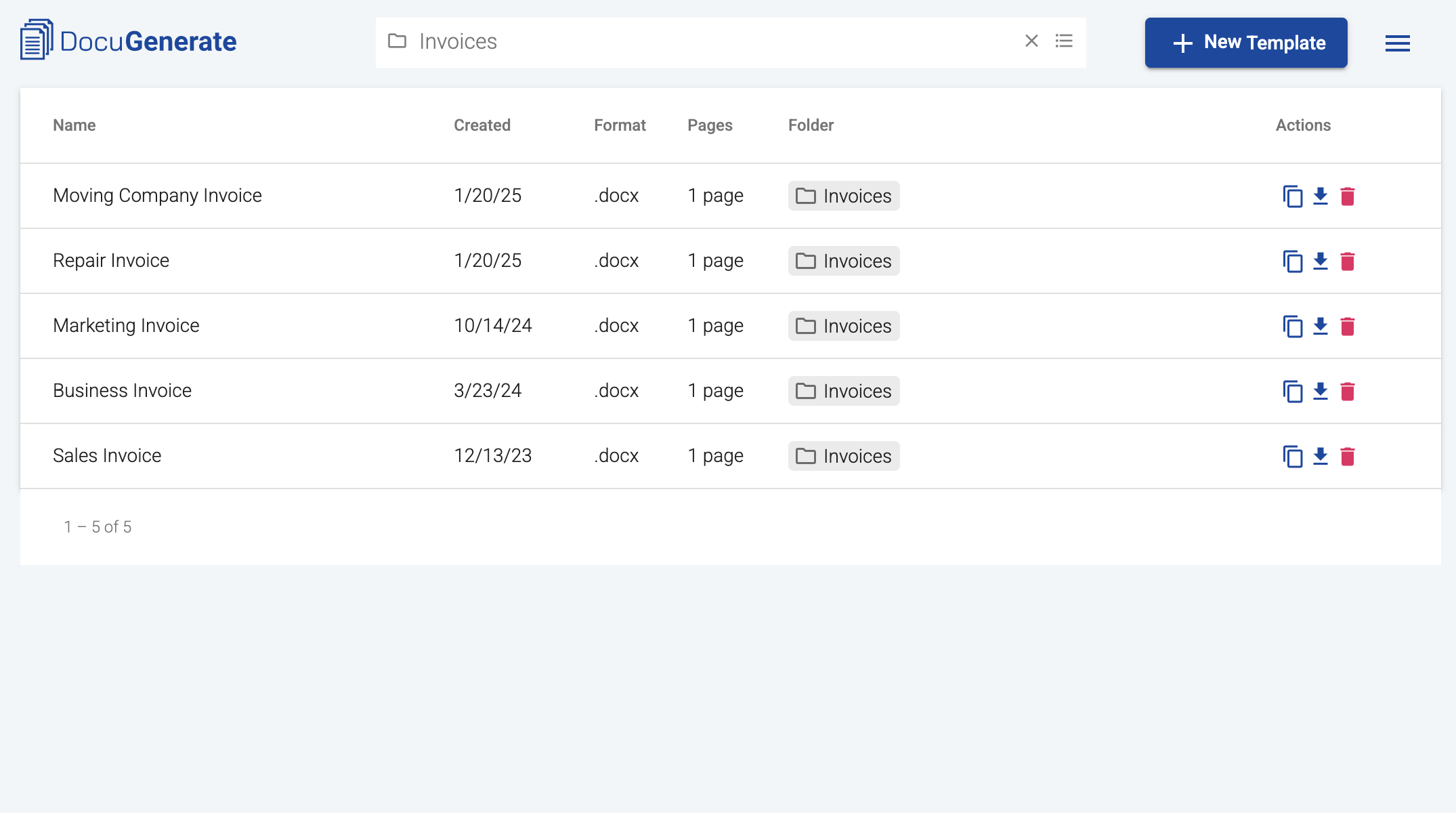
The folder breadcrumb appears in the navbar, showing the full path of the selected folder. To return to the default view with all the templates, click the Clear Folder icon next to the breadcrumb or select All Templates in the folder menu.
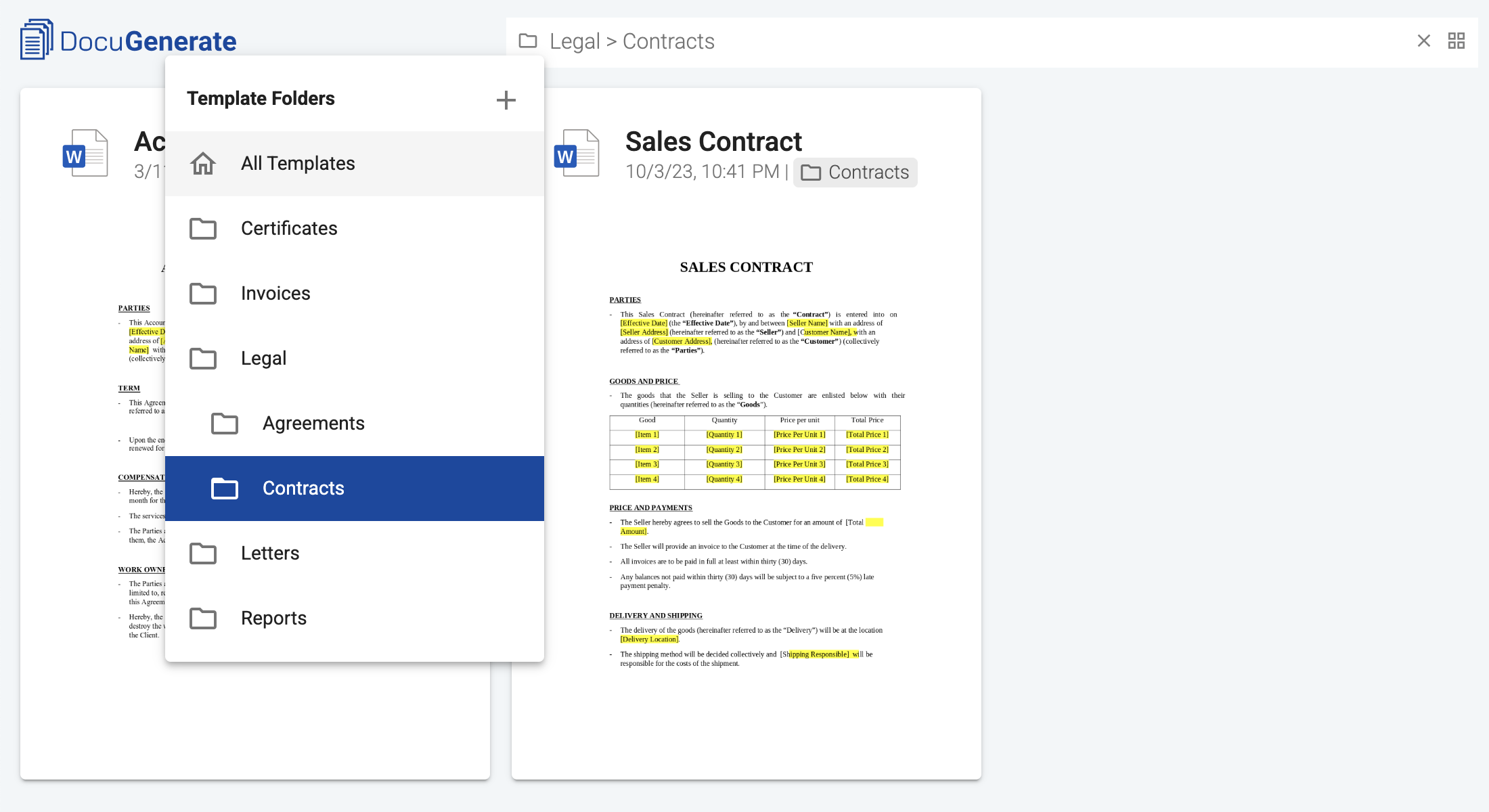
The folder a template belongs to is visible in both Grid and List views of the templates page. In the Grid view, the folder name appears under the template title alongside a small folder icon. In the List view, a dedicated Folder column shows the same information. Clicking the folder name in either view filters the templates list to that folder.
Editing, Moving, and Deleting Folders
Each folder in the folder menu has a context menu with three actions: Edit to rename the folder or change its parent, Delete to remove the folder and all its sub-folders, and Add to create a new sub-folder inside it.
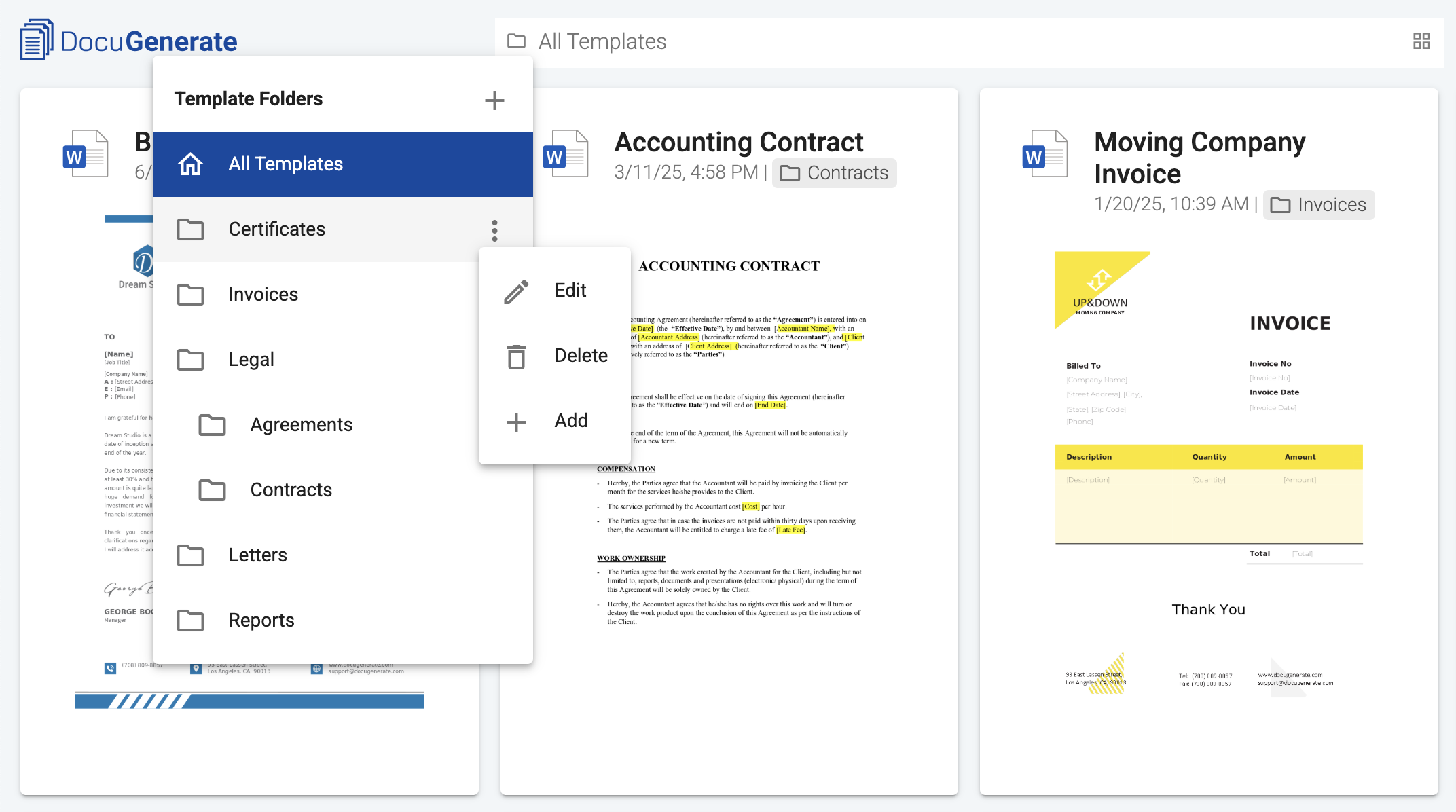
When you delete a folder, all of its sub-folders are also removed. Templates inside deleted folders are not themselves deleted, they simply become orphaned and return to the All Templates view. This means deleting a folder is always a safe operation from the perspective of your template content.
Moving a folder under a different parent is supported, with one safety guard: a folder cannot be moved into itself or any of its own descendants. The folder dialog automatically disables those options when you’re editing an existing folder, so the constraint is enforced visually before you can even attempt an invalid move.
Folders for Team Collaboration
For users with the team collaboration feature, folder organization extends naturally to shared templates. Team members see their team owner’s folders in a dedicated Shared section within the folder menu, separated from their own folders by a visual divider.
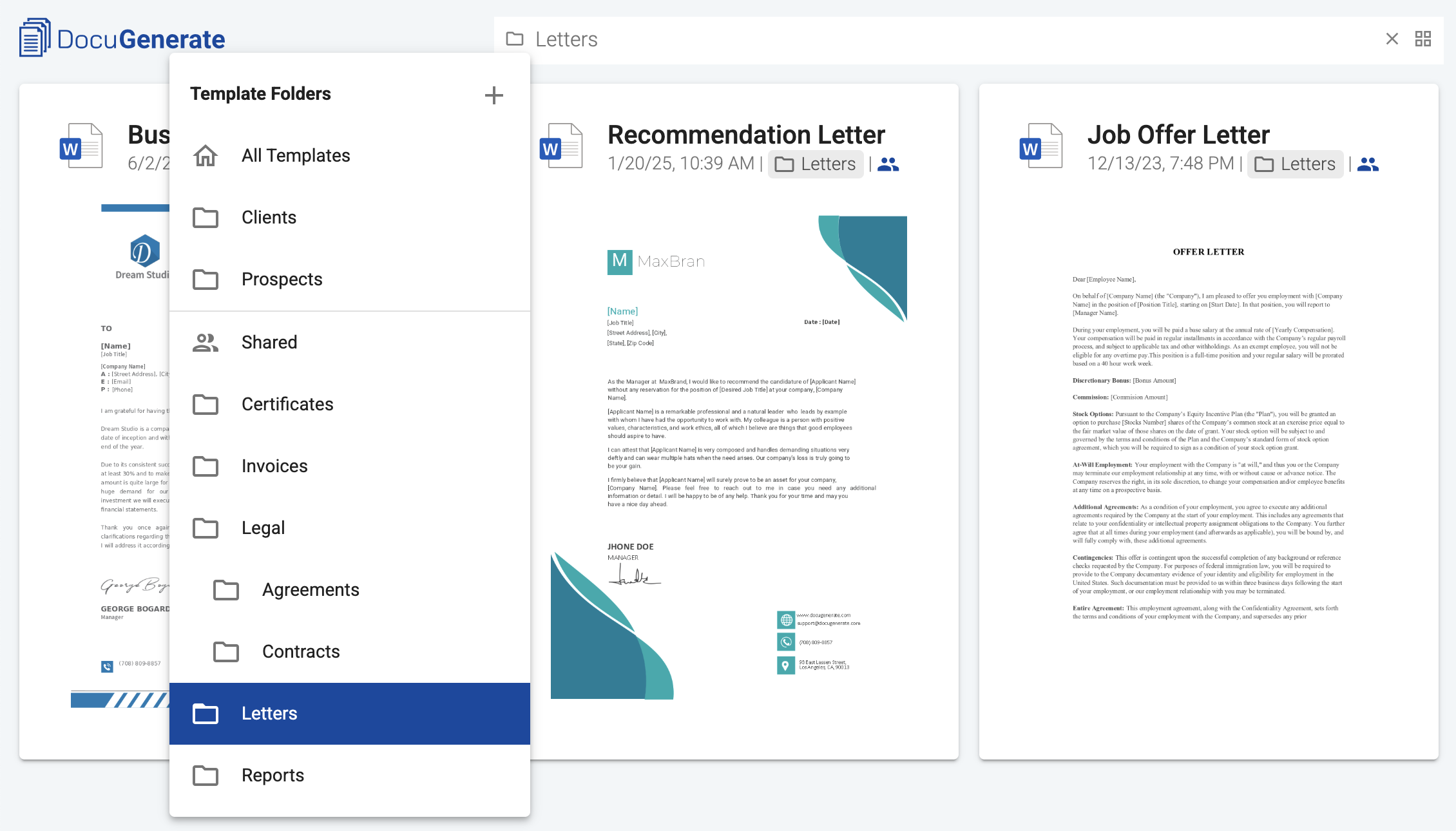
The visibility model is intentional: team members can browse and filter by the team owner’s shared folders, but they cannot create, rename, or delete folders in the team owner’s hierarchy. This keeps the folder structure consistent across the team and gives the owner clear ownership of how templates are organized for everyone.
When a team member is added or removed, the folder structure reflects this change immediately, without requiring any action on the member’s part. Similarly, when the owner makes changes to their folder structure, those changes propagate to every team member’s view as soon as they’re saved.
Folder Support in the API
For users who manage templates through the DocuGenerate API, folder organization is accessible through the same endpoints you already use. The folder a template belongs to is represented as a folder parameter on the template, expressed as an array of folder names that traces the path from the root to the assigned folder. For example, a template inside a sub-folder named “Contracts” within a parent folder named “Legal” has its folder field set to ["Legal", "Contracts"].
Specifying a Folder When Creating a Template
When creating a template via the API, you can include the folder parameter in your request to assign the template to a specific folder. If the folder path doesn’t yet exist in your account, DocuGenerate creates it automatically, including any intermediate folders along the way.
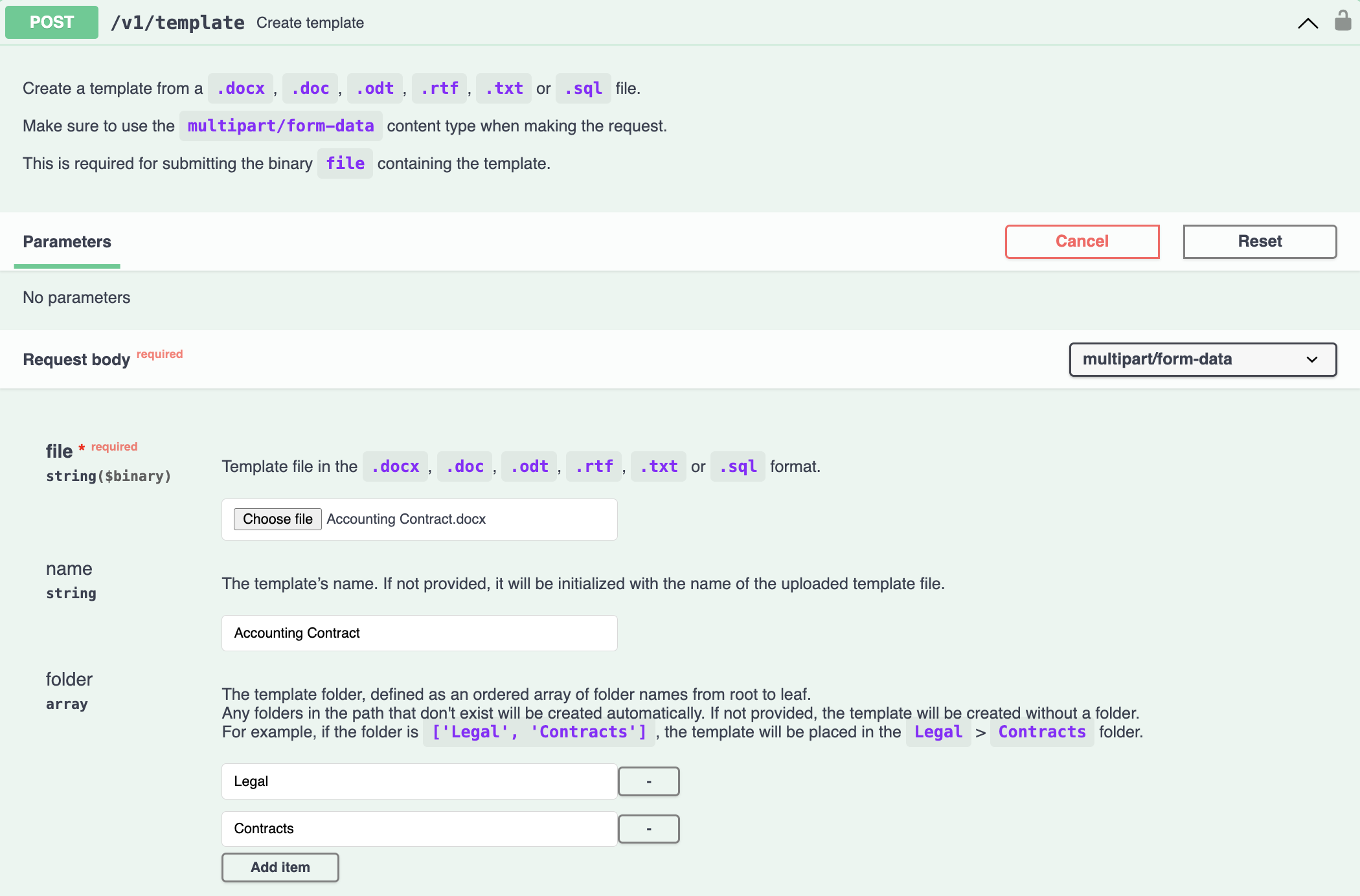
This auto-creation behavior makes it easy to set up your folder structure programmatically as you create templates, without needing to pre-configure the hierarchy through the web app first.
Moving Templates Between Folders
To move an existing template to a different folder, you can use the update template endpoint with a new value for the folder parameter. Setting it to an empty array ([]) removes the template from any folder, returning it to the orphaned state.
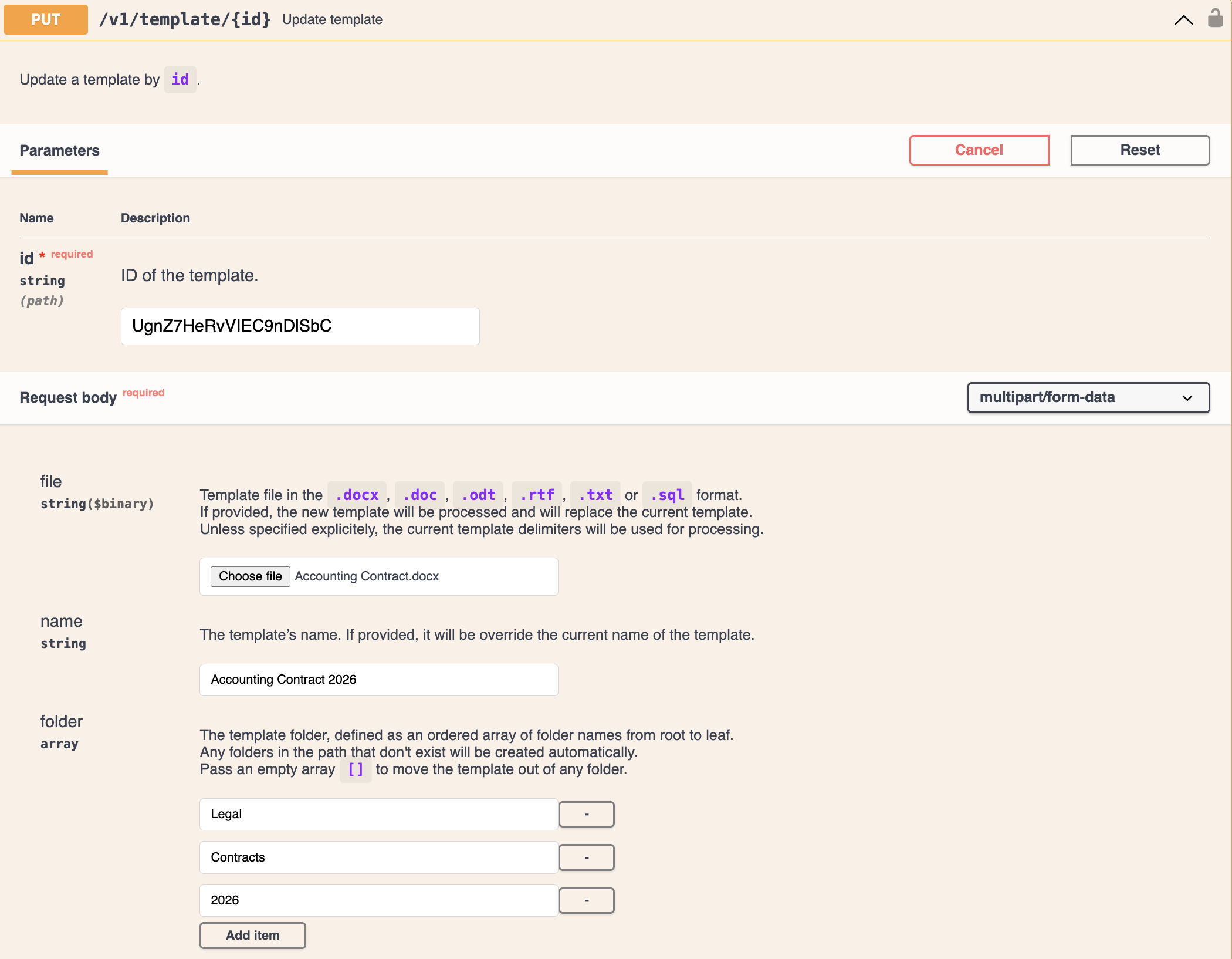
As with template creation, if the new folder path doesn’t exist yet, DocuGenerate creates the missing folders automatically (provided you’re the template owner). Team members with write permission on a shared template can update the template’s contents and settings, but they cannot create new folders in the template owner’s hierarchy, mirroring the web app behavior.
Filtering Templates by Folder
The list templates endpoint accepts a folder query parameter that filters the response to a specific folder. The parameter takes the same form as for the creating or updating a template, expressed as an array of folder names that traces the path from the root to the assigned folder.
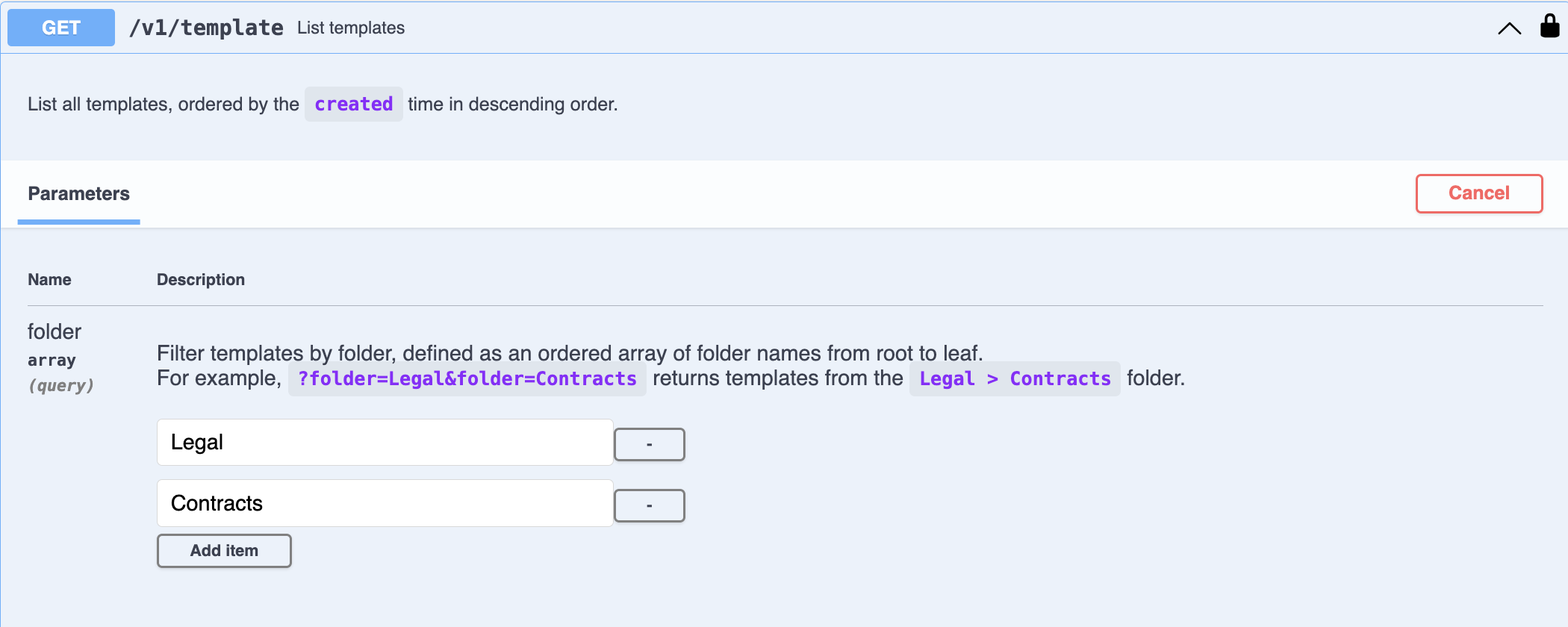
This filter follows the same logic as the web app filtering: selecting a folder returns only templates directly assigned to it, not templates from any sub-folders. To gather templates from a folder and all of its sub-folders, you’d issue separate requests for each sub-folder.
Use Case Scenarios
Let’s explore some real-world scenarios where template folders can provide significant value.
Scenario 1: Department-based Organization
A mid-sized company uses DocuGenerate to manage templates across multiple departments: HR, Legal, Sales, and Finance. With dozens of templates in each department, finding the right one had become time-consuming, and new hires struggled to locate the templates relevant to their role.
After organizing templates into top-level folders by department, with sub-folders for specific document types (offer letters, contracts, proposals, invoices), team members can navigate directly to their department’s folder and see only the templates relevant to them. Shareable folder URLs are added to each team’s onboarding documentation, giving new hires a direct link to the templates they’ll be using from day one.
Scenario 2: Client-based Organization for an Agency
A marketing agency generates personalized contracts, proposals, and reports for dozens of clients, each with their own branding and terms. Before folders, the agency’s team relied on a naming convention like [client-name]_[document-type] to locate templates, but this created long, hard-to-scan template names and made it difficult to onboard new account managers.
By creating a top-level folder per client and organizing document types as sub-folders, the agency’s account managers can now browse a clean, hierarchical view of all materials for any given client. When onboarding a new client, the account manager creates a new client folder and replicates the standard sub-folder structure inside it.
Scenario 3: Programmatic Folder Setup via API
A document automation team integrates DocuGenerate into their internal tooling, generating templates programmatically from a database of document patterns. Their internal system organizes patterns by region and document category, and they want their DocuGenerate account to mirror that structure exactly.
Using the API, their integration sends the appropriate folder parameter when creating each template, automatically building out a folder hierarchy that matches their internal taxonomy. This keeps their DocuGenerate account synchronized with their source-of-truth without any manual folder management in the web app, even as their pattern catalog evolves.
Best Practices for Folder Organization
To get the most out of template folders as your library grows, consider these practices that help keep your structure useful and maintainable over time:
-
Start with broad categories and refine as needed. Resist the temptation to create deep folder hierarchies from day one. Begin with a few top-level folders that match the highest-level distinctions in your workflow, and add sub-folders only when a category accumulates enough templates to justify subdivision.
-
Match folders to how your team thinks, not how your data is structured. A folder structure works best when it reflects the mental model your team already uses. If everyone refers to “Q1 contracts” rather than “January through March contracts”, let the folder name match the spoken vocabulary, even if it diverges from your internal naming standards.
-
Use shareable folder URLs for onboarding. When new team members join, share direct links to the folders they’ll be working with most often. This shortens the learning curve significantly and ensures everyone is aware of the relevant templates from the start.
-
Re-evaluate periodically. Folder structures that made sense a year ago may not match how your team works today. Schedule a periodic review (quarterly or semi-annually) to consolidate underused folders, split folders that have grown too large, or restructure entirely if your workflow has changed substantially.
Conclusion
Template Folders are one of the most-requested additions to DocuGenerate, and we’re glad to finally deliver an organizational model that scales with your template library. Whether you’re managing a small handful of templates or hundreds across multiple departments and clients, folders give you the structure and flexibility to find what you need and share it with your team.
As always, we welcome your feedback as you start organizing your templates with this new feature. We’re particularly interested in hearing about workflows where folders save your team meaningful time, as well as any rough edges you encounter in real-world use that we should consider for future improvements.
Resources